
How to set up and use a VPN: A comprehensive guide for all devices
📝 Executive Summary (In a Nutshell)
A Virtual Private Network (VPN) is an essential tool for online privacy and access, and while often marketed as self-running, understanding its setup and features is crucial for optimal use.
This guide details the end-to-end process, from selecting a reputable provider and downloading the client, through to platform-specific installation on desktop, mobile, smart TVs, and even routers.
Key configuration steps like activating a kill switch, utilizing split tunneling, and strategically choosing server locations are covered to enhance security, bypass geo-restrictions, and ensure a seamless online experience.
Chances are that if a VPN is marketed to everyday users, it more or less runs itself. As long as you go with one of the best VPNs instead of setting up your own manual connection, the interface is likely built so you have to engage with it as little as possible. Generally, if you find yourself constantly thinking about your VPN while using it — as happened to me with Norton VPN — that's a bad thing and you should change providers.
That said, it's still useful to get a high-level view of how to use a VPN, especially if you've never used one before. In this article, I'll walk you through how to download, install and configure a VPN on any platform and how to choose servers for specific situations. I'll also discuss specific steps for desktop and laptop computers, phones, tablets, smart TVs, game consoles and routers. Our goal is to equip you with the knowledge to not just use a VPN, but to use it effectively, maximizing your online privacy and freedom.
Table of Contents
- How to Download and Install a VPN
- How to Configure a VPN App
- How to Choose a VPN Server
- When to Use a VPN (and When Not To)
- Instructions for Specific Devices
- Troubleshooting Common VPN Issues
How to Download and Install a VPN
There are over 100 VPNs available on the internet and the two big mobile app stores, but most of them follow a similar approach to download and installation. Except for certain free VPNs, you'll need to create an account on the VPN provider's website, install the VPN client, then use your account to log in. Here are the steps.
Before diving into the steps, it's crucial to select a reputable VPN provider. Factors like a strict no-logs policy, strong encryption standards (e.g., AES-256), a wide server network, reliable speeds, and responsive customer support are paramount. Always check independent reviews and audits, and be wary of providers offering services that seem too good to be true, especially free VPNs which might compromise your data.
-
In a web browser, navigate to a VPN provider's website. For suggestions on where to start, check out our list of the best VPN deals. Click any link that mentions getting the VPN or claiming the deal — as a rule, they aren't hard to find.
-
Select a plan based on the length of time you need the VPN for, the features you want and the number of devices you'd like to use the VPN on simultaneously. Add a payment method. You'll be prompted to create the username and password for a new account. When choosing a plan, consider features like dedicated IP addresses, obfuscated servers, and multi-hop connections if your privacy needs are particularly high.
-
On desktop, you can start with the Mac or Windows app store, though some VPNs require a download directly from their respective website. That’s generally the way to get the most feature-rich version of the VPN, but just make sure you’re downloading from the provider’s website to ensure you don’t get a malicious copycat. Always verify the URL and look for secure connections (HTTPS). On mobile, the app store is your only choice, but don't forget to check the reviews and make sure you're getting the service you paid for — unfortunately, rival (and sometimes less scrupulous) VPN brands can use paid placements to appear higher on search results, even for a rival product. Carefully examine the developer's name to ensure it matches your chosen VPN provider.
-
Follow the pre-programmed installation flow. Again, don't let a VPN make any changes to your system if you haven't thoroughly vetted the provider (or gone with one of our recommendations). If it's safe, allow the VPN all the setup permissions it needs. These usually include network access permissions to reroute your internet traffic and permissions to install necessary drivers or system extensions.
-
Finally, open the VPN client and sign in with the credentials you created in step two. You're now ready to start using your new VPN. Most clients will offer a "Quick Connect" option, which automatically connects you to the fastest available server.
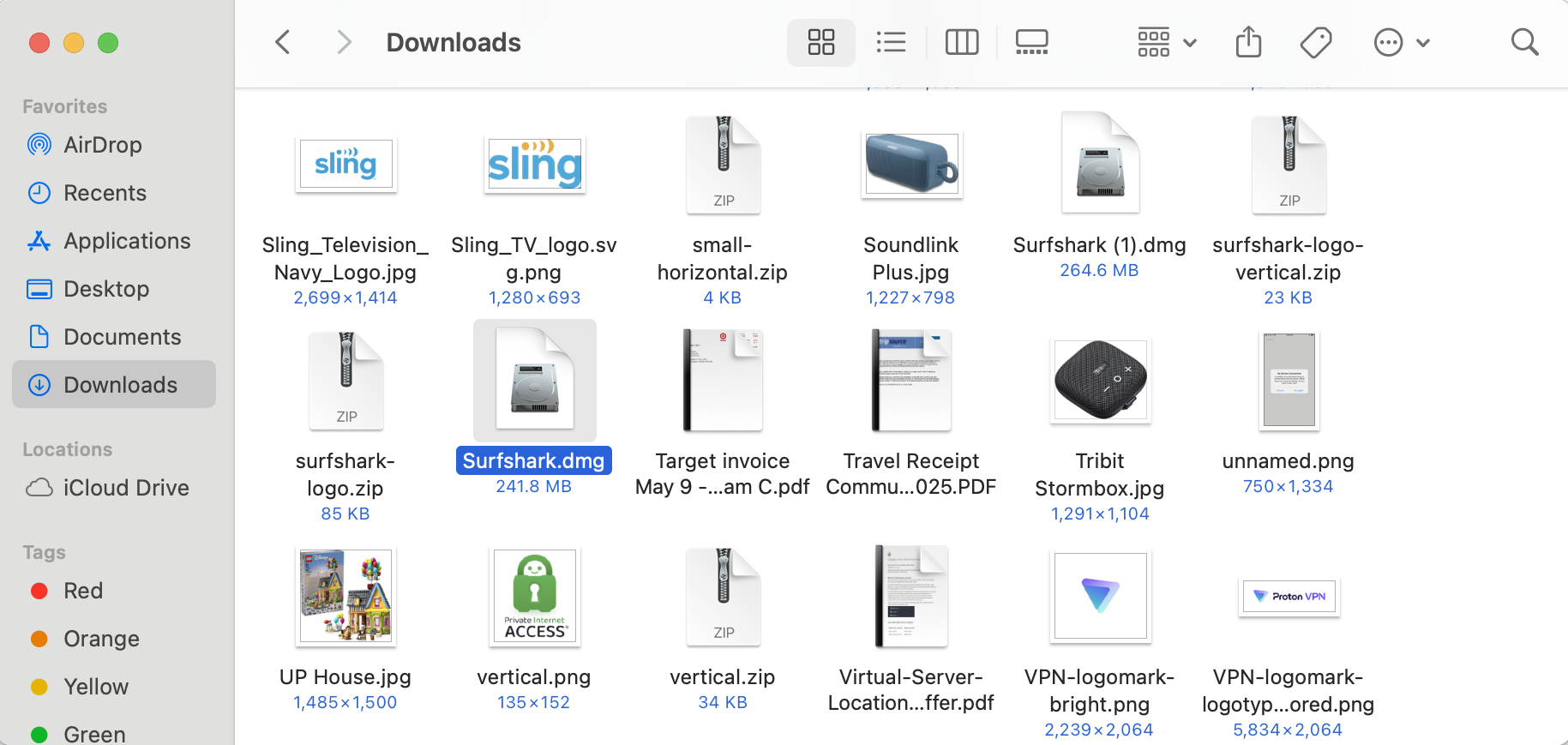
With so many VPNs on the market, this process won't always be the same. Sometimes you'll have to make the account before paying, and some mobile VPNs let you handle the whole process in-app. What's always true, though, is that a good VPN will make the signup flow as easy as possible. If you have trouble before you even log in, that's a red flag. A smooth onboarding experience is indicative of a user-friendly service.
How to Configure a VPN App
Most VPNs are ready to go out of the box. However, even if you don't think you're a power user, it's a good idea to go through the settings and make sure they match what you need. Taking a few minutes to customize your VPN can significantly improve your privacy, security, and overall user experience. Here are a few steps I recommend taking.
-
Activate the kill switch. This feature monitors your connection to the VPN server. If it ever drops — either from problems in the server, your client or somewhere in between — the kill switch instantly cuts off your internet until your VPN connection is restored. This saves you from accidentally broadcasting anything sensitive while also ensuring you only connect to legitimate VPN servers (avoiding the Tunnelvision bug). A kill switch is your last line of defense against accidental data leaks.
-
Set up favorites and profiles. VPNs usually let you select servers you'll use regularly, websites you'll often connect to through the VPN and other preferences that will appear immediately when you open the app. Some go further, like Proton VPN, which lets you create user profiles that bundle several preferences together. This can be particularly useful if you frequently switch between using the VPN for streaming from one region and for secure browsing from another.
-
Decide if you want the VPN to automatically launch and connect when you start up your computer. For maximum privacy, enabling this is highly recommended, as it ensures you're protected from the moment you go online, preventing any unprotected traffic from being exposed.
-
Check on split tunneling. There may be cases where you want a certain app or site to work outside the VPN, or where you want everything to go unencrypted except one site or app. You can set up a split tunnel when you need it, but if there's one you know you'll use regularly, it helps to build it early. For instance, you might want to use your local bank's app without the VPN while keeping all other traffic encrypted for security. This feature offers a great balance between security and convenience.
-
Activate or deactivate any content blockers the VPN comes with, including ad blockers, malware detectors and parental controls, as you see fit. These features can significantly enhance your browsing experience and security by blocking intrusive ads, malicious websites, and inappropriate content.
-
Decide whether you want the VPN to send you notifications, and how. While some notifications (like connection status) can be helpful, others might be intrusive. Tailor these to your preference.
-
Select a VPN protocol. It's almost always best to let the VPN choose for itself, but it's helpful to at least know where the protocol-switching option is. Occasionally, if one protocol isn't working, you can troubleshoot by selecting another. Common protocols include WireGuard (fast and secure), OpenVPN (highly customizable and robust), and IKEv2/IPsec (good for mobile stability). Understanding these options can help you optimize for speed or security as needed.
You can do all this by digging into your VPN's preferences control panel. A gear seems to be the universal icon for that, but Mac users may also find it by picking "preferences" or "settings" from the menu bar. When you find the preferences menu, go through each tab in turn and make sure everything is the way you like it. Don't be afraid to experiment with settings; you can always revert to defaults if something isn't working as expected.
How to Choose a VPN Server
Picking a server location is the final box to check before connecting. You nearly always have the option of letting the VPN pick the best server. Most apps tend to determine the best server with a latency test, so it will almost always be a node very close to your physical location.
If you just want anonymity online, that's fine — it doesn't matter which IP address you use as long as it's not your real one. But several VPN use cases do require a specific server location. For those, follow one simple rule: Pick a server in the place you want your signal to come from. This simple principle unlocks a world of possibilities, from accessing geo-restricted content to enhancing gaming experiences.
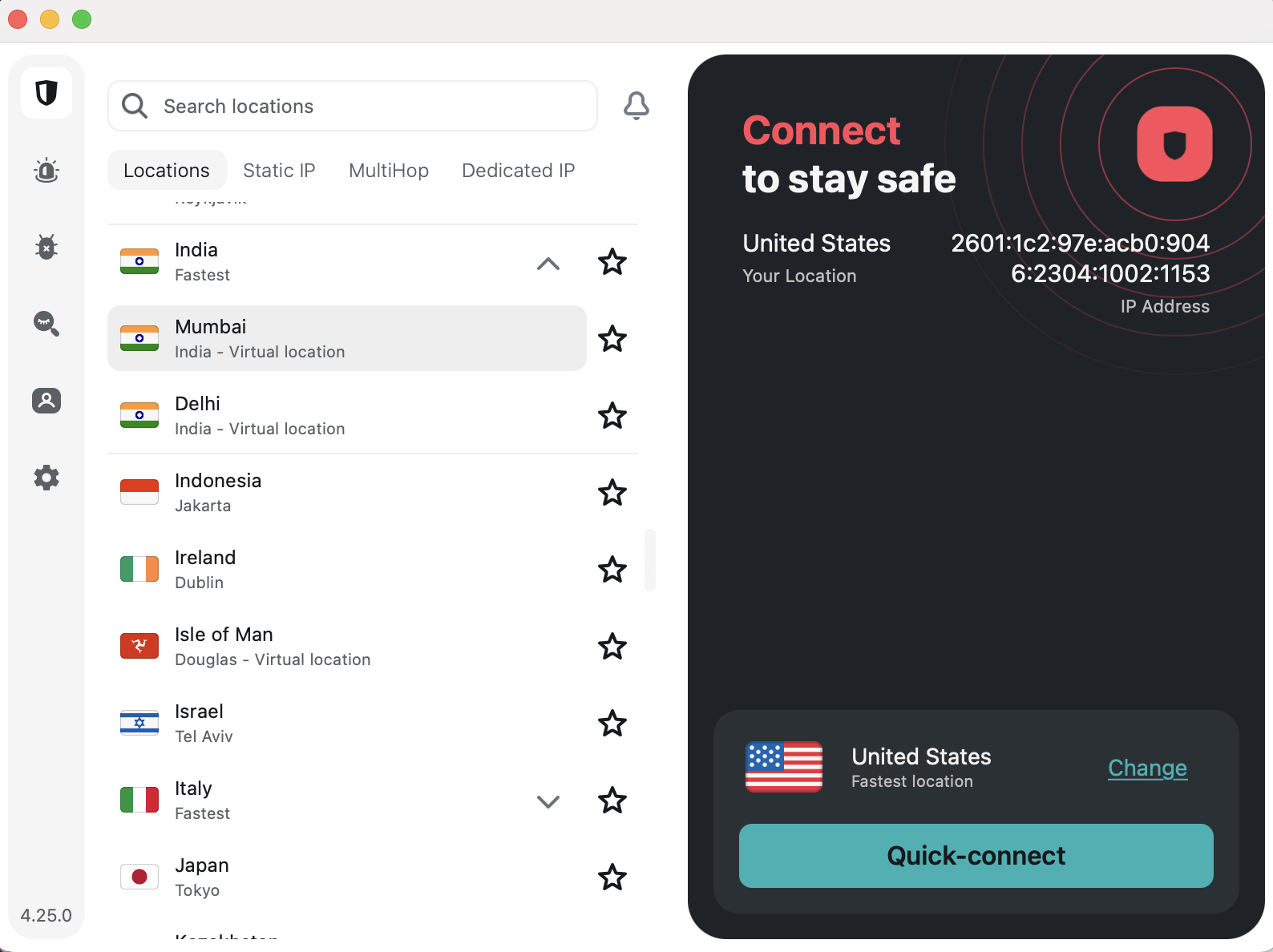
For example, let's say you want to watch The Office, but you're only subscribed to Netflix and not Peacock. Luckily, Netflix is licensed to show The Office in the U.K. If you connect to a British server location before opening Netflix, you'll be able to access the show without paying for an extra subscription. (Of course, make sure VPNs aren’t expressly banned by the streaming service’s terms of service before accessing it while using one.) Similarly, you might find different content libraries on streaming services like Disney+, Hulu, or BBC iPlayer by connecting to servers in other countries.
Other than streaming, the most common reason you'll need a specific VPN server is to get around firewalls that block websites. Whether it's your school doing the censorship, your workplace or your entire state, the solution is the same: Pick a VPN server outside the restricted region. Censorship systems filter by location — they can't block where they don't have jurisdiction. Get a new virtual location and you should be free and clear. (Always be cognizant of the laws on VPN usage in your location before activating them.) This also applies to accessing news sites, social media platforms, or certain online services that might be blocked in specific countries or networks. For tips on navigating online restrictions safely, you might find this guide on digital freedom helpful.
Gamers can also benefit from strategic server selection. By connecting to a VPN server closer to the game server (rather than your physical location), you might experience lower ping and reduced latency, leading to a smoother gaming experience. Additionally, a VPN can help protect you from DDoS attacks, a common nuisance in competitive online gaming.
When to Use a VPN (and When Not To)
It's good to get into the habit of connecting to your VPN whenever you get online. You can never be sure what information your ISP is gathering on you. If you're using unprotected Wi-Fi, or a public network with a clearly visible password, anybody might be listening in. Even if you don't need a particular location, always be using your VPN. This "always-on" approach ensures your online activities are consistently encrypted and your IP address is masked, providing a foundational layer of privacy against data brokers, advertisers, and potential malicious actors. Public Wi-Fi networks, often found in cafes, airports, and hotels, are particularly risky due to their open nature and lack of encryption, making a VPN indispensable in such environments.
The only reason you might want to be online without a VPN is that certain websites, especially online banks, get suspicious if they note repeated logins to the same account from too many different IP addresses. For those cases, you can either set up a split tunnel to exclude the website from encryption, or temporarily turn your VPN off altogether. Financial institutions employ sophisticated fraud detection systems, and a constantly changing IP address can trigger security alerts, potentially locking your account. Similarly, some streaming services or online stores might occasionally flag VPN usage, even if it's not explicitly against their terms. In these specific scenarios, it's prudent to temporarily disable your VPN or use the split tunneling feature to maintain access without compromising your overall privacy. For more general online safety tips, consider checking out our cybersecurity best practices guide.
Instructions for Specific Devices
Although most VPNs try to keep their apps similar on every platform, the strictures of differing hardware and software lead them to install and operate differently. In case you still have questions after reading the general guide above, this section goes into detail on every platform where you might use a VPN. Understanding these nuances will help you get the most out of your VPN across all your devices.
How to Use a VPN on Desktop
After subscribing to a VPN on Windows, you should be directed to download an EXE file — if this doesn't happen, log into your account on the website and find the downloads center. Find the folder where the EXE is saved, double-click it and follow the onscreen instructions. The installation wizard will guide you through accepting the terms of service, choosing an installation directory, and allowing the necessary system permissions. Once installed, the VPN client typically places a shortcut on your desktop and integrates into your system tray for easy access.
On Mac, the process is more or less the same, except you'll usually get a PKG file instead of an EXE. Go to your downloads folder (either in Finder or through your web browser) and double-click the PKG file. Grant the VPN whatever permissions it needs. (Again, this is why it’s important to only use a legitimate vendor, such as the ones we recommend.) Mac VPNs often require permissions for network extensions and accessibility, which are crucial for their functionality. After installation, the VPN app will typically reside in your Applications folder and may add an icon to your menu bar.
Once installed, you can open the VPN client at any time by double-clicking the icon again. Some VPNs open as separate windows, while others will add icons to your toolbar. This often varies by platform; if you're concerned that your VPN doesn't look like a screenshot you've seen, check which operating system the image comes from. Many desktop clients offer a comprehensive dashboard where you can easily select servers, configure settings, and monitor your connection status.
How to Use a VPN on Mobile
On Android and iOS, you'll download your VPN app through the Google Play Store or Apple App Store, respectively. Even if you get started through a mobile browser, it will probably redirect you to the app store for the actual download and installation. Mobile VPN apps are designed for simplicity, often featuring a large connect button and an intuitive server list.
Follow the usual step for downloading an app: search for its name in the app store, click "Get" or "Install," then let your phone cook. As always, so long as it's a vetted VPN, grant it the permissions it needs. This typically includes permission to set up a VPN configuration, which allows the app to encrypt and reroute your device's internet traffic. You may be able to download and install the VPN first, then create your account and submit payment through the app afterward.
One final note: several leading VPNs offer free trials for mobile users. If you see a button that says something like "get free trial," you may be able to use the VPN for several days without paying. Just be warned that if the trial lapses, you might get automatically signed up for a plan that's longer than you'd like. Always read the terms and conditions of free trials carefully to avoid unexpected charges.
How to Use a VPN Browser Extension
VPNs offer browser extensions as lightweight versions of their main clients. While a desktop or mobile VPN reroutes everything that device sends to the internet, a browser extension only protects traffic through your web browser. You can use one as a primitive form of split tunneling, but they're mainly for basic convenience — most of what you do online goes through a browser, so it's nice to be able to protect your connection without opening a separate app. Browser extensions are ideal for quick IP changes or simple geo-unblocking within the browser, but remember their scope is limited to browser traffic only.
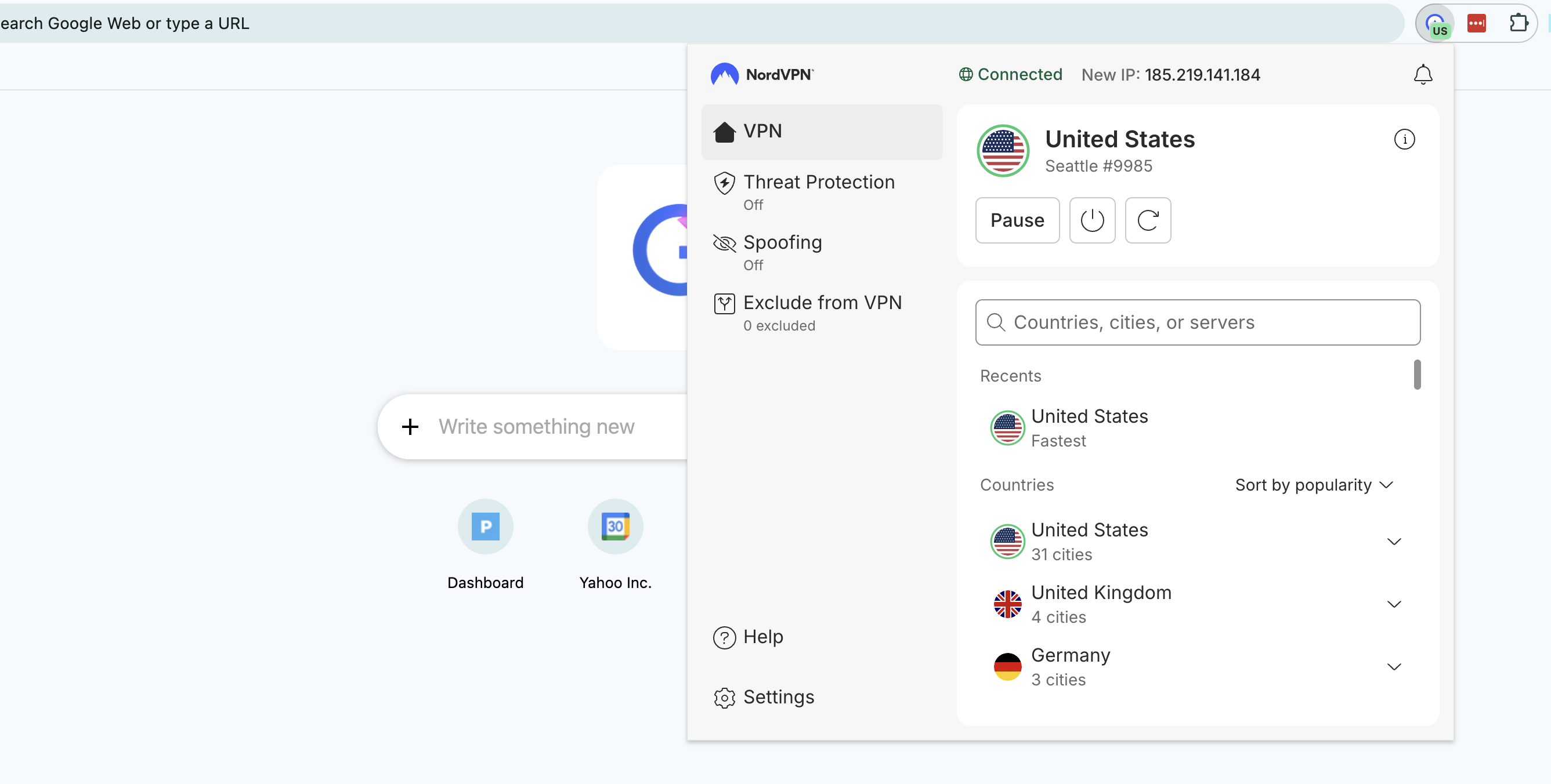
To use a VPN browser extension, just create your account as normal, then download the extension from your VPN's website or directly from your browser's extension store (e.g., Chrome Web Store, Firefox Add-ons). You can manage it from your browser's extensions center. That's a jigsaw piece at the top-right corner on most browsers, including Chrome, Edge and Firefox. Once installed, a small icon will appear in your browser's toolbar, allowing you to quickly connect, disconnect, and switch server locations.
How to Use a VPN on a Smart TV
You can use a VPN to change your location and stream international content directly to a smart TV. The catch is that not all smart TV brands support VPN apps. For those that don't, you'll have to find a workaround.
The good news is that a ton of the best smart TVs can natively host VPNs, including Google TV, Android TV, Amazon Fire TV and Apple TV (though only tvOS 17 and above). To use a VPN on Android TV or Apple TV, go through the device's app store. On Fire TV, simply type the name of your chosen VPN provider into the search bar. The installation and usage process is very similar to mobile devices, with apps optimized for larger screens and remote controls.
On smart TVs that don't have native VPN, like LG, Roku and Samsung, you have a few options. You can use a smart DNS feature like ExpressVPN's MediaStreamer to reroute smart TV traffic without full VPN encryption; the steps for this are different for every VPN, so check the provider's website. Smart DNS is faster because it lacks encryption, but offers no privacy benefits. You can also install a VPN on your router (see below) so your smart TV automatically uses the router's location, encrypting all traffic for every device on your home network.
Finally, you can get a temporary fix by using your computer as a Wi-Fi hotspot while it has a VPN active. This method effectively shares your computer's VPN-protected internet connection with your smart TV, acting as a gateway. Follow the steps for your operating system.
On Windows:
In your system settings, go to "Network & Internet" and turn on the mobile hotspot.
Go to "Network & Sharing Center" and click "Change adapter settings."
Right-click the name of your VPN provider and go to "Properties," then "Sharing."
Check the boxes next to "Allow other network users to connect through this computer's internet connection" and "Allow other network users to control or disable the shared internet connection."
Click the "Home networking connection" dropdown and select "Microsoft Wi-Fi Direct Virtual Adapter."
Open your VPN client and connect to a server in your desired location.
On your smart TV, open the internet connections menu and select the name of your PC. Your TV is now online through the VPN server.
On Mac:
Open system settings and go to the "General" tab. Scroll down and click "Sharing."
Toggle "Internet Sharing" on, then click on "Configure."
Click the "Share your connection from" dropdown, then choose the VPN installed on the Mac. Under "To computers using," select "Wi-Fi."
Click on "Wi-Fi options" and enter a name and password for your hotspot network.
On your smart TV, connect to the network you just created.
How to Use a VPN on a Game Console
Right now, there's no such thing as a game console with native VPN support. If you want to use a VPN while gaming — and I recommend that for safety if you're planning to play online — you can use two of the same methods that work for a smart TV: install a VPN on your router, or get your console online through a Mac or PC hotspot.
Using a VPN for gaming offers several advantages beyond mere privacy. It can help protect you from DDoS attacks, which are unfortunately common in competitive online gaming and can disrupt your connection. Furthermore, a VPN can allow you to access region-locked games, DLC, or earlier releases by connecting to a server in the relevant country. While a VPN might introduce a slight increase in ping due to the encryption and rerouting, choosing a server close to the game's servers can often mitigate this effect. For advanced tips on optimizing your home network for gaming, check out our guide to network performance.
How to Install a VPN on a Router
When you install a router VPN, anything that gets online through your home network will be protected, including game consoles, TVs and smart devices that don't support VPNs natively. It's not a process for the faint of heart, though. You'll need to get a new router and potentially install VPN firmware on it yourself. This method provides comprehensive protection for all devices connected to your network, ensuring every byte of data is encrypted without needing individual VPN apps on each gadget. If you want to go this route, the easiest option is to get an ExpressVPN Aircove router — not only does it come with all the settings done for you, but it can be managed through the same clean interface as ExpressVPN's other apps.
We don't have space here to go through the entire process, but here's a general overview. First, get a router with firmware that supports VPN configurations — most ISP default routers don't, so you'll have to go third-party. Look for routers compatible with open-source firmware like DD-WRT, OpenWRT, or Tomato, which offer advanced customization options. Many VPN providers also sell pre-flashed routers or offer specific guides for popular models.
Next, go to the downloads center of your VPN's website and look for the section with VPN configurations. A "configuration" is a complete set of the information needed to access a certain VPN server through a certain protocol — say, a Proton VPN server in Arizona through OpenVPN. Download a configuration file for the protocol and location you want all your home devices to connect through. These files typically come in an .OVPN format for OpenVPN.
Finally, open your router control panel by entering your router's IP address into a web browser address bar (common IPs include 192.168.1.1, 192.168.0.1, or 10.0.0.1), then log in with your router credentials (these should be marked on the router itself unless you've changed them). Go to the VPN tab — which should be there if it's a router with VPN firmware — and upload the profile you downloaded from the VPN website. Use the same router control panel to activate and deactivate the router VPN connection. This centralized control allows you to manage the VPN for your entire network from a single interface.
Troubleshooting Common VPN Issues
Even with the best VPNs and careful setup, you might occasionally encounter issues. Here are some common problems and quick solutions:
- Slow Speeds: If your internet speed drops significantly, try connecting to a different server, preferably one closer to your physical location. Switching to a faster VPN protocol like WireGuard (if available) can also help. Sometimes, simply restarting the VPN client or your device can resolve temporary slowdowns.
- VPN Not Connecting: Ensure your internet connection is stable. Try switching VPN servers or protocols. Temporarily disable your firewall or antivirus software to see if they are blocking the VPN (remember to re-enable them afterward). If the problem persists, reinstalling the VPN client can often fix corrupted files or settings.
- Blocked by Streaming Services/Websites: Streaming services actively block VPN IP addresses. Try connecting to a different server in the same country. Clearing your browser's cache and cookies can also help, as these might store location data that reveals your true location. Some VPNs offer specialized "streaming servers" or obfuscated servers designed to bypass these blocks.
- Kill Switch Triggering Incorrectly: If your kill switch activates too frequently, check your internet stability. A consistently flaky connection can make the kill switch overactive. Adjusting the VPN protocol might also improve connection stability.
- DNS Leaks: Although rare with reputable VPNs, a DNS leak can reveal your browsing activity to your ISP. Most good VPNs have built-in DNS leak protection. You can test for leaks using online tools. If a leak is detected, ensure your VPN's specific DNS protection features are enabled.
If you've tried these troubleshooting steps and are still experiencing problems, don't hesitate to contact your VPN provider's customer support. Reputable VPNs offer 24/7 support through live chat, email, or ticketing systems, and their technical teams are usually well-equipped to resolve complex issues.
In conclusion, a VPN is a powerful tool for enhancing your digital privacy and freedom. While the basic operation is designed to be user-friendly, taking the time to understand its installation, configuration options, and specific applications across different devices can dramatically improve your online experience. By following this comprehensive guide, you're now equipped to confidently navigate the world of VPNs, securing your connection and unlocking global content, no matter where you are or what device you're using.
💡 Frequently Asked Questions
Q: Is it legal to use a VPN?
A: In most countries, using a VPN is perfectly legal. However, some countries with strict censorship (like China, Russia, or North Korea) regulate or ban VPN usage. It's crucial to check the local laws in your region regarding VPNs. Additionally, while using a VPN is generally legal, engaging in illegal activities while using a VPN remains illegal.
Q: Will a VPN slow down my internet?
A: Yes, a VPN can slightly slow down your internet speed. This is because your internet traffic is encrypted and rerouted through a VPN server, adding extra steps to the data transfer. The extent of the slowdown depends on factors like the VPN provider's server network, the server's distance from you, the encryption strength, and your original internet speed. Opting for a reputable VPN with fast protocols (like WireGuard) and connecting to nearby servers can minimize speed loss.
Q: Can I use a free VPN?
A: While free VPNs exist, they often come with significant trade-offs. Many free VPNs have slower speeds, data caps, fewer server locations, and may display intrusive ads. More concerningly, some free VPNs have been caught logging user data, injecting malware, or selling user bandwidth to third parties, directly undermining the purpose of a VPN. For reliable security and privacy, it's generally recommended to use a reputable paid VPN service.
Q: What is a kill switch and why is it important?
A: A kill switch is a VPN feature that automatically disconnects your device from the internet if your VPN connection unexpectedly drops. This is crucial because if your VPN connection fails, your internet traffic would revert to your unencrypted, exposed connection, potentially revealing your IP address and online activities. The kill switch acts as a safety net, ensuring your data remains protected even during VPN connection interruptions.
Q: Can a VPN protect me from all online threats?
A: A VPN is a powerful tool for online privacy and security, but it's not a silver bullet against all online threats. It encrypts your internet traffic and masks your IP address, protecting you from snooping by your ISP, hackers on public Wi-Fi, and geo-restrictions. However, a VPN does not protect against malware, phishing attacks, or viruses if you click on malicious links or download infected files. It's essential to use a VPN in conjunction with other cybersecurity practices, such as strong passwords, antivirus software, and cautious browsing habits.
Post a Comment